|
|
Top Previous Next |
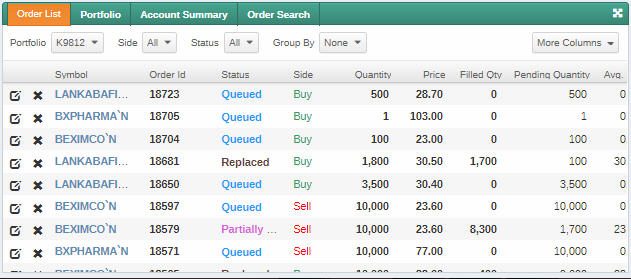
Order List
Use this procedure to view the real-time progress of the orders you entered for the current trading session.
Once you place an order using TradeXpress, the order is validated and sent to the Order Management System (OMS). During the market open hours, the status of the order is shown as Sent to OMS New. If the market is closed, the status is New Waiting and when the market opens its status is changed to Sent to OMS New. These active orders once sent to the exchange, try to find a match from the other side of the Order Book. If a match is not found, then the orders are stored in the Order Books as per the price/time priority. The status of such orders is displayed as Queued in the Order List. Once the order is matched the status in the Order List is updated to Filled. Note that the order statuses can differ depending on the exchange. Once the order you placed is filled, or is partially filled, it is reflected in the Portfolio and the cash balance is updated in the Account Summary window.
Figure 01 - Order List
PROCEDURE
To view the Order List: 1.On the side menu select
To amend an Order:
1.On the Order List window - Click the - When amending a general order, you can change only the part of the order which is still not executed.
Figure 01 - Amend Order
To cancel an Order:
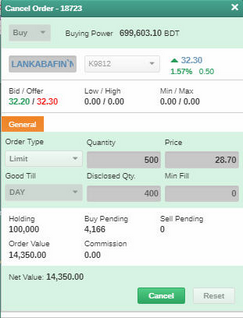
1.On the Order List window - Click the - When canceling a general order, you can cancel only the part of the order which is still not executed.
Figure 02 - Cancel Order
To view Order Details:
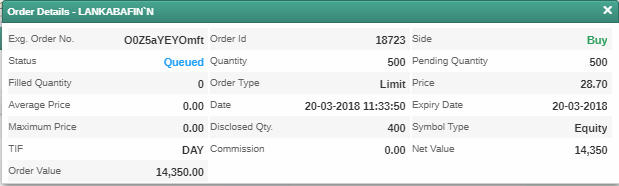
1.On the Order Details window - Double click on an order to view the Order Details .
Figure 03 - Order Details
|

 icon next to an order. The amend order window will open.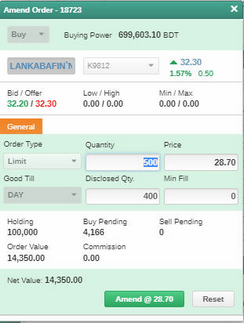
 icon next to an order. The cancel order window will open.